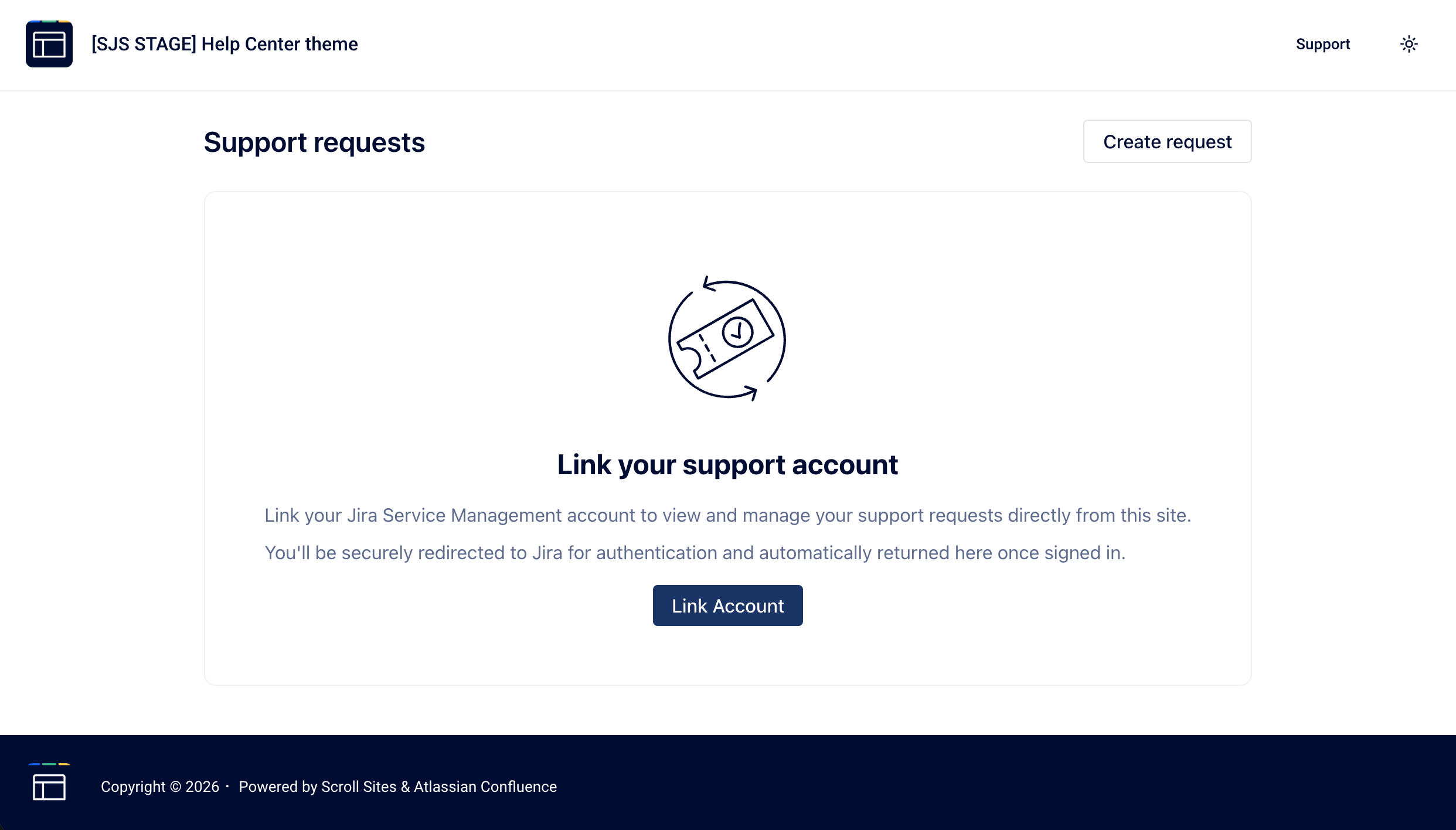
Before you begin with the Service Management Integration, please ensure your foundational environment is ready. This extension requires an active Scroll Site to function.
Prerequisites
Before moving to Step 1, verify the following:
-
Scroll Sites is installed on your Confluence Cloud instance.
-
A Site is created and published: You must have at least one live Scroll Site URL (e.g., https://your-company.scroll.site).
-
Permissions: You must have Administrator permissions for both Confluence Cloud and Jira Cloud.
Step-01: Install the app
-
You can install the app from the Atlassian Marketplace.
Step-02: Configure Service Management Integration app
In this step, you will set up the connection between your Jira Service Management (JSM) project and your Scroll Site.
-
Open the app's configuration page: Navigate to "Jira settings" → "Apps" → "Service Management Integration".
-
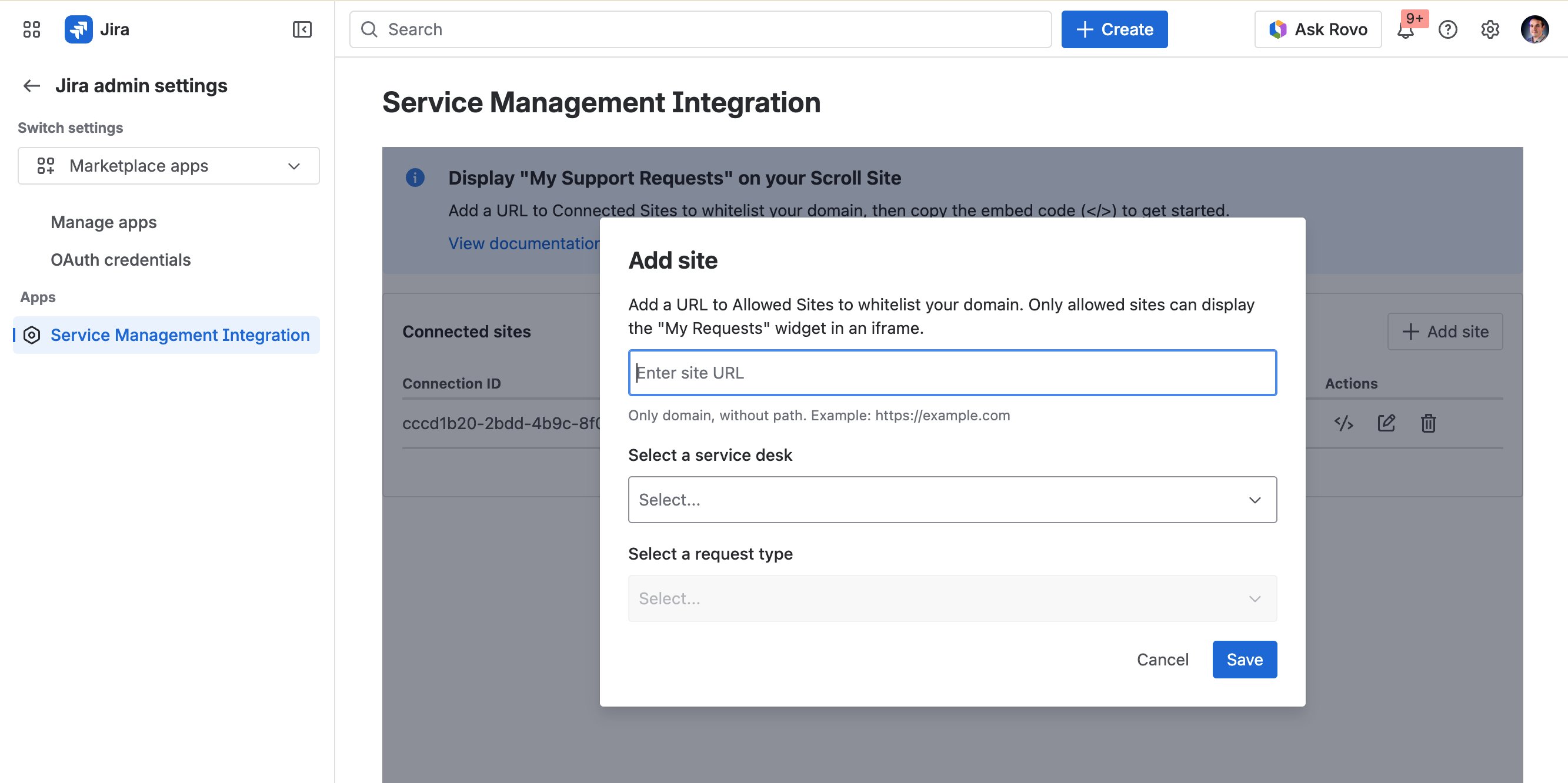
Add your Site: In the app settings, register the URL of the Scroll Site where the widget will be displayed.
-
-
Define Default Portal & Request Types: Select the specific JSM Portal you want to integrate. Choose the default request types that users will see when they open the widget.
-
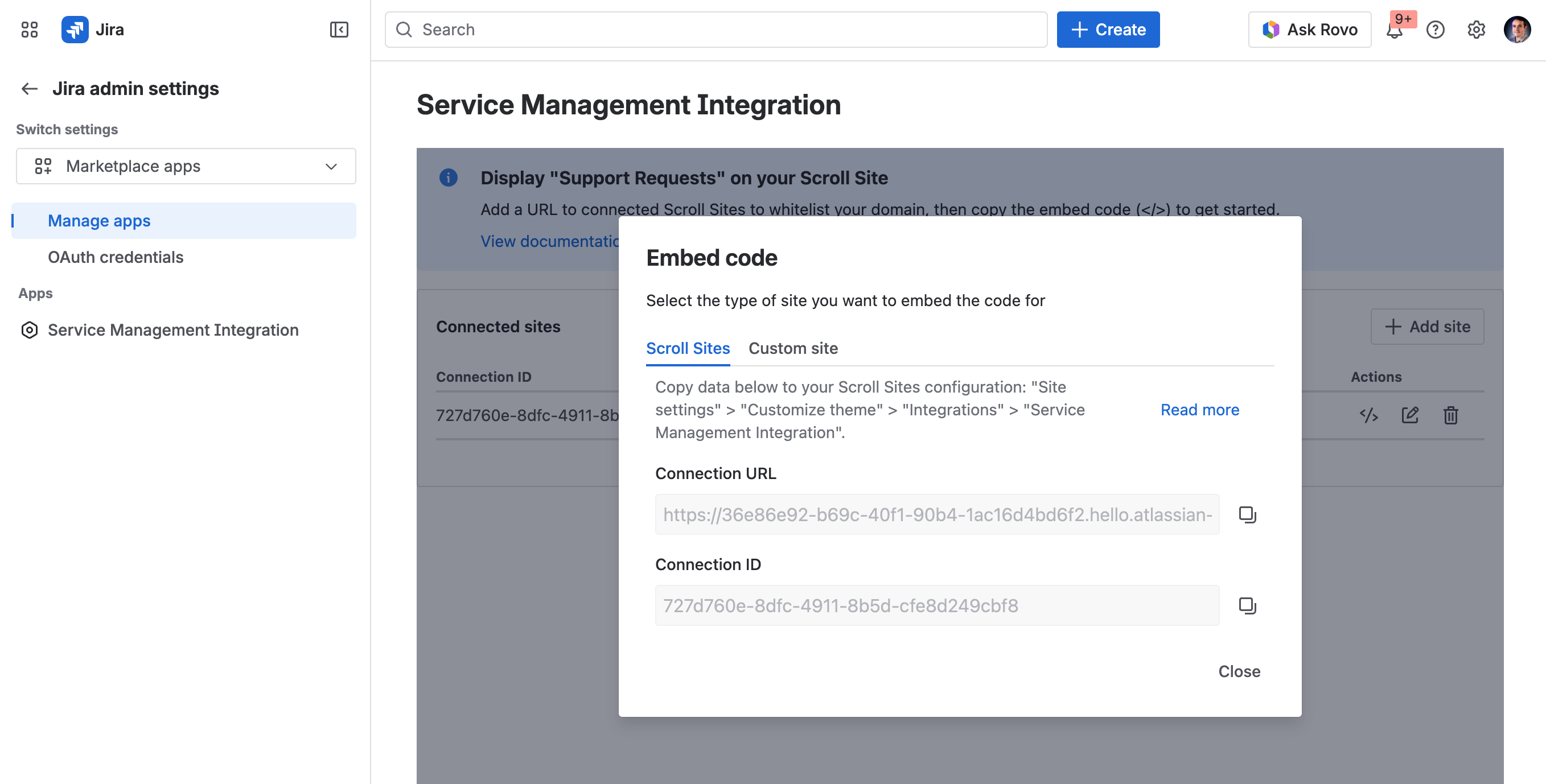
Generate Connection URL and ID: Once the configuration is saved, the app will generate a Connection URL and Connection ID. You will use these values to configure linking with Scroll Site later.
-
Step-03: Configure your Scroll Site
Now, you need to tell your Scroll Site to load the widget using the Connection URL and Connection ID you just generated.
-
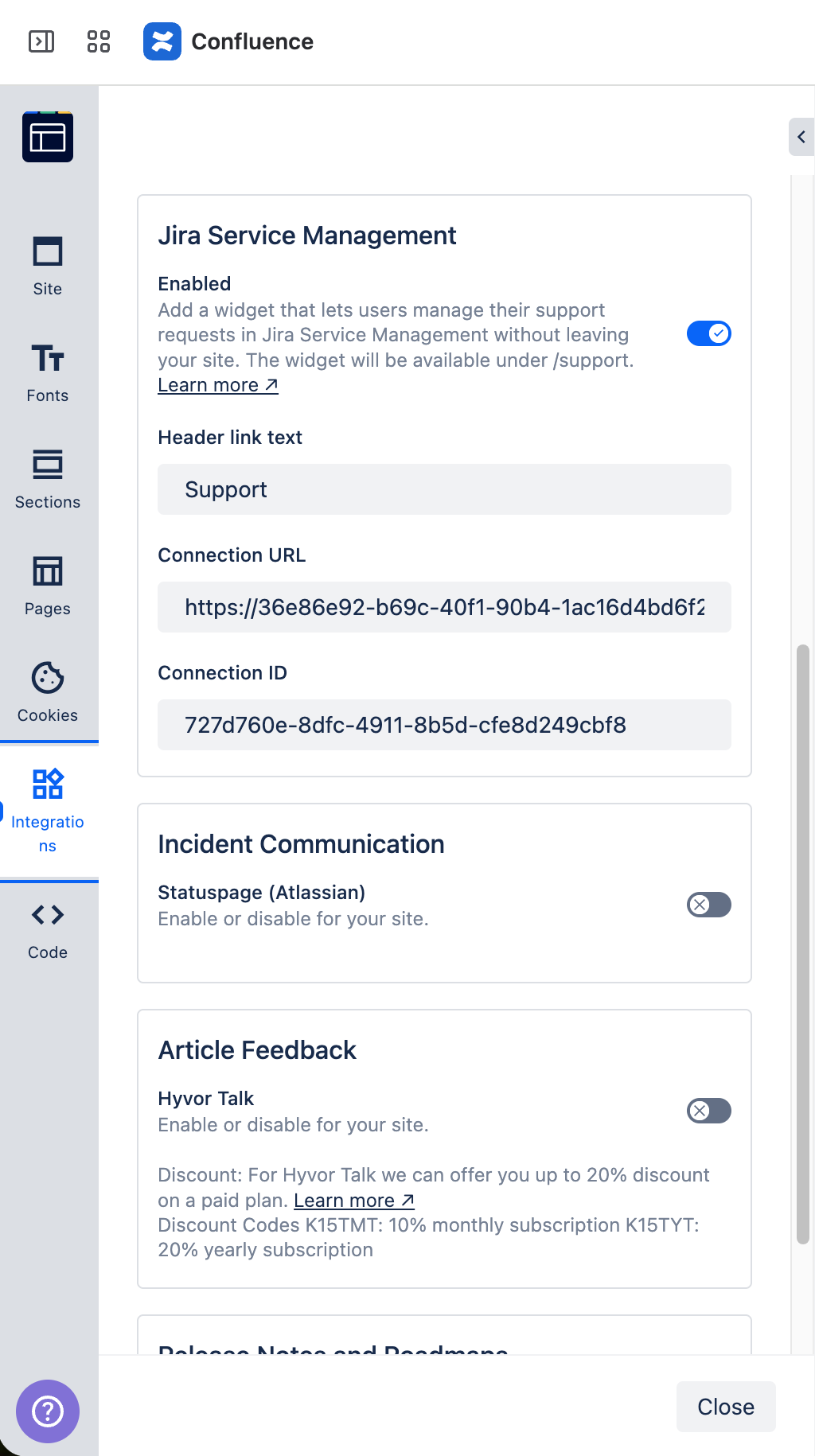
Enter the Connection URL and Connection ID: Go to the "Integrations" section of your theme settings. Copy the Connection URL and Connection ID from the "Service Management Integration" app and paste them there one by one.
-
-
Publish the Site: Save your changes and click Publish. This makes the script active and prepares the "handshake" between the systems.
Step-04: Verify the Integration
Finally, ensure that the widget is functional and that the extended features are working as expected.
-
Access your Scroll Site: Open your live Help Center in a browser.
-
Interact with the Widget: Locate the widget page (“Support”) in header menu and open it.
-
Check JSM authentication: Authenticate via the JSM portal using your Atlassian account (ensure you have customer permissions on the JSM Portal) or use a dedicated customer account (Portal-only account).
-
-
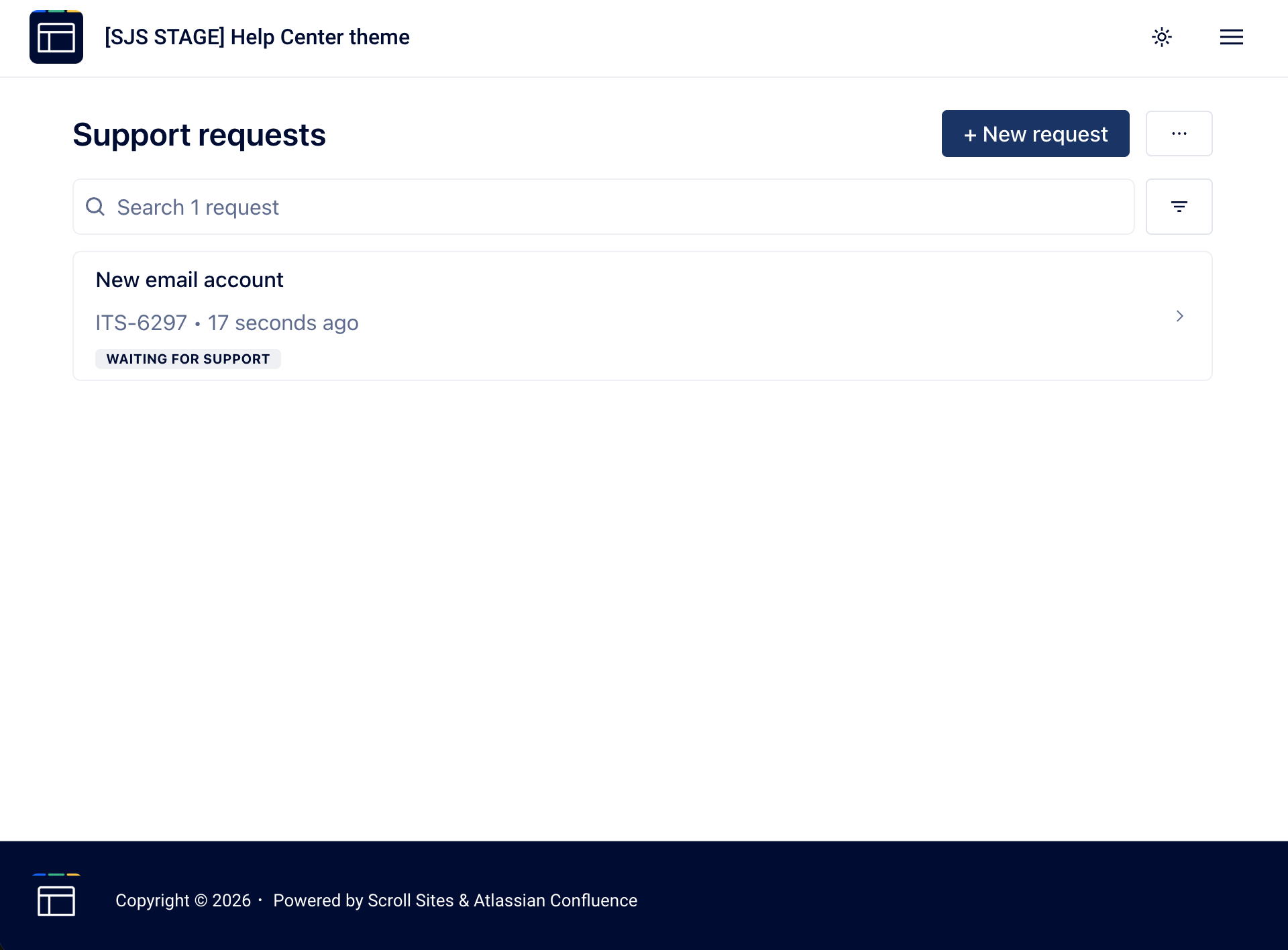
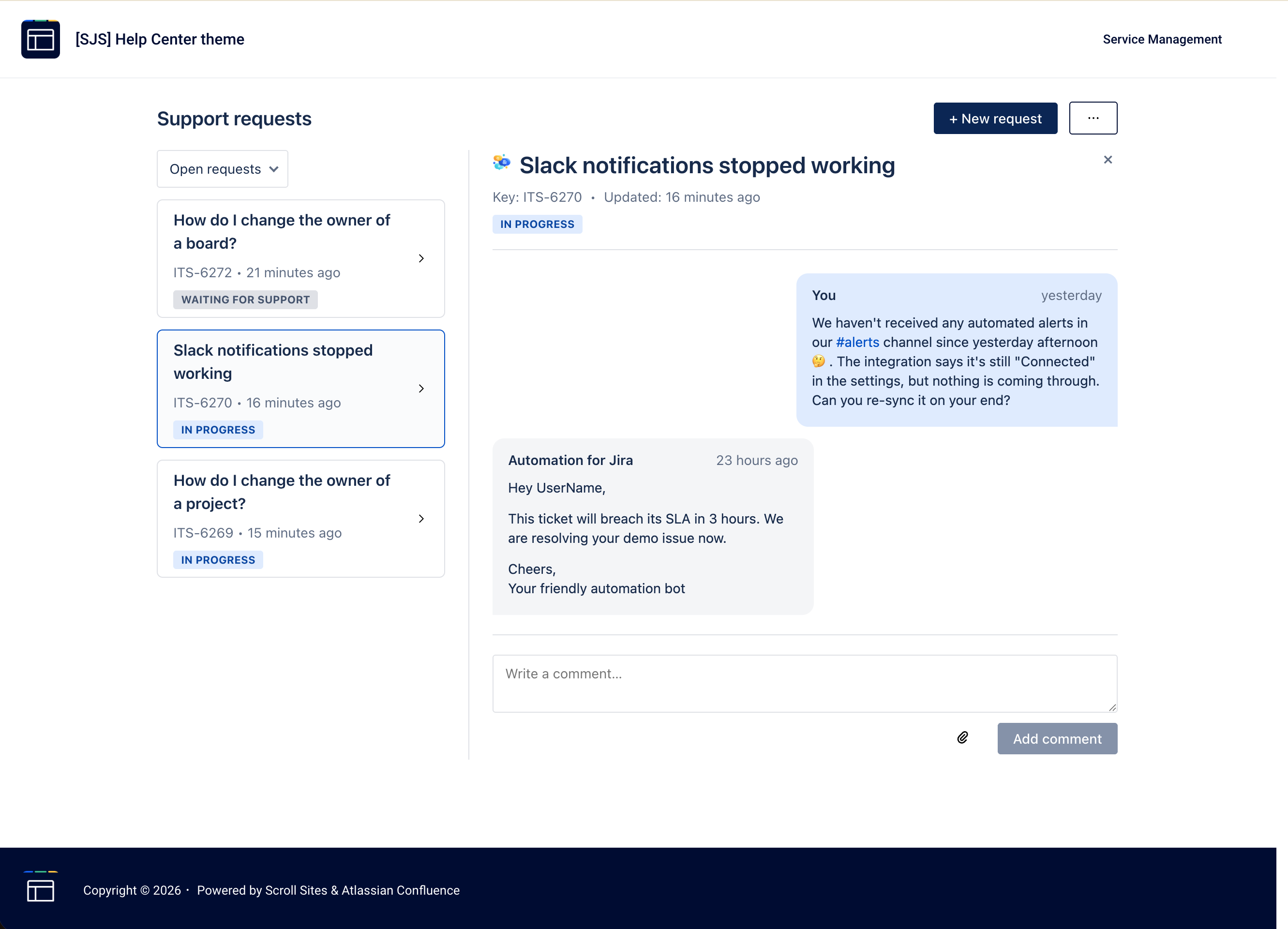
Check Request Availability: Verify that you can see your existing tickets.
-
Confirm that the Status is displayed correctly.
-
Try adding a Comment to a ticket to ensure the two-way integration is fully active.
-
-
-